
Version
Windows Authentication on Microsoft SQL Server
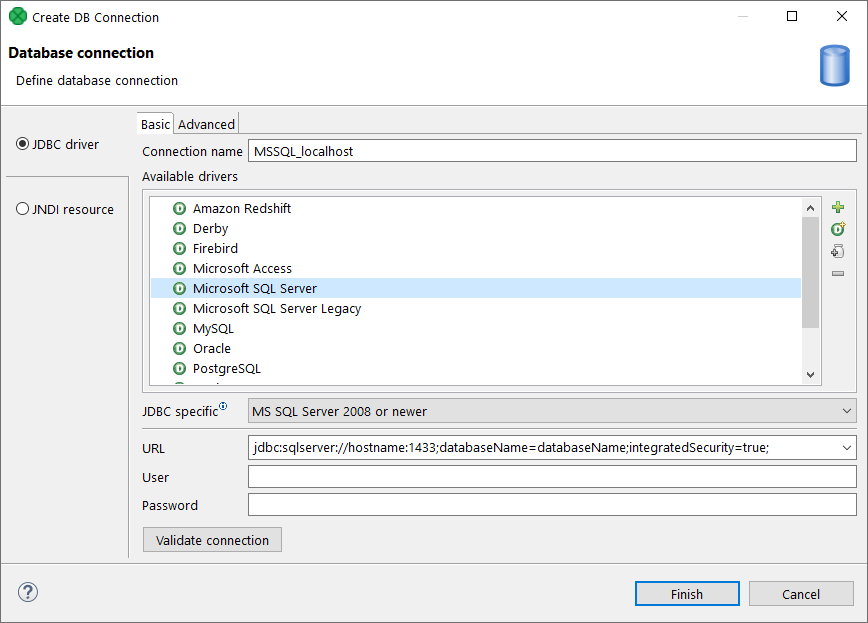
Windows authentication means creating a database connection to Microsoft SQL Server using your Windows account, instead of User and Password fields (see figure below). The Microsoft SQL Server JDBC driver depends on native libraries you have to install. To enable this all, follow the steps described in this section.
Figure 190. Connecting to MS SQL with Windows authentication.
CloverDX comes with a bundled Microsoft SQL Server JDBC driver.
However, it does not contain native libraries required for Windows authentication on Microsoft SQL Server.
Thus, it is necessary to download the native dll (mssql-jdbc_auth-8.4.1.x64.dll) and perform some additional settings.
Getting the Native Library
CloverDX bundles Microsoft SQL Server JDBC driver v. 8.4.1.. To download the driver follow these instructions:
-
Get the dist package.
-
Extract the contents and go to folder
sqljdbc_8.4\enu\auth\x64\. -
Copy the
mssql-jdbc_auth-8.4.1.x64.dllfile to a folder, e.g.C:\mssql_dll.
|
If you are running on the x86 architecture then extract the *x86.ddl version from the ..\x86 directory. Otherwise, the driver will not work properly. |
Installation
Now there are two ways how to make the dll work.
The first one involves changing Windows PATH variables.
If you do not want to do that, go for the second option.
-
Add the absolute path to the
dllfile (C:\mssql_dll) to the WindowsPATHvariable. Alternatively, you can put thedllfile to some folder which is already included inPATH, e.gC:\WINDOWS\system32. -
Modify the
java.library.pathproperty for all members of the CloverDX Family of products:-
Designer
Modify VM Parameters in the graph’s Runtime Configuration screen (see figure below). Add this line to VM parameters:
-Djava.library.path=C:\mssql_dllThe runtime configuration is valid for all graph within the same workspace.
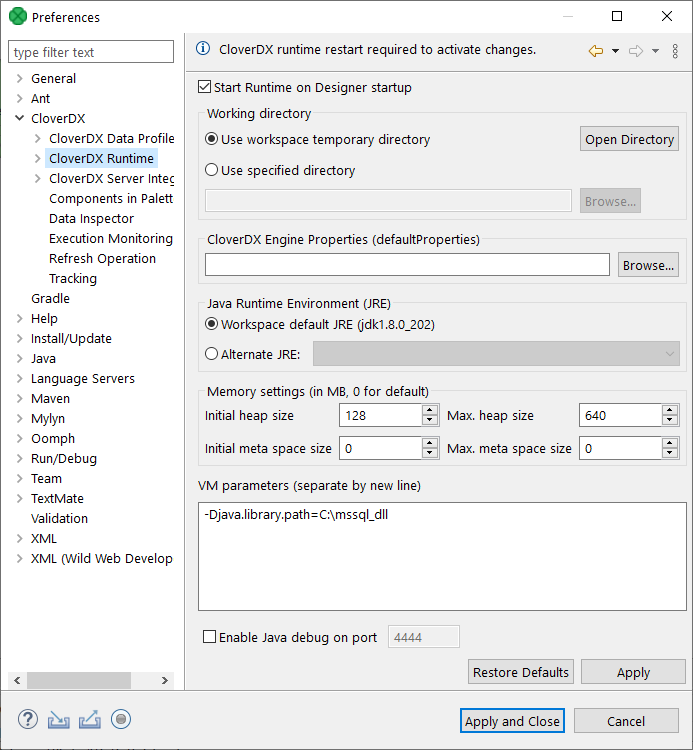 Figure 191. Adding path to the native
dllto VM parameters. -
CloverDX Server
In the script that starts Tomcat, add the
-Djava.library.path=C:\mssql_dlloption toJAVA_OPTS. For example, add the following line at the beginning ofcatalina.bat:set JAVA_OPTS=%JAVA_OPTS% -Djava.library.path=C:\mssql_dll
-
-
MS SQL Server - make sure you have:
-
TCP/IP
Enabledin -
TCP Port set to 1433 in TCP/IP
-
-
Enable Windows Authentication in the URL
Add the integratedSecurity=true parameter to the JDBC URL, e.g.
jdbc:sqlserver://hostname:1433;databaseName=databaseName;integratedSecurity=true;