
Creating a Dictionary
The dictionary specification provides so called "interface" of the graph and is always required, even, for example, when the graph is used with Launch Service.
In the source code, the entries of the dictionary are specified inside the
<Dictionary> element.
To create a dictionary, right-click the Dictionary item in the Outline pane and choose from the context menu. The Dictionary editor will open.
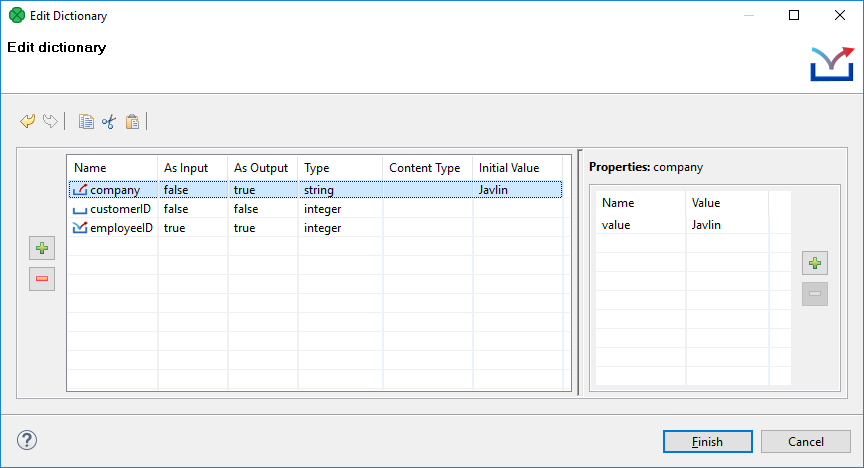 |
Figure 37.1. Dictionary Dialog with Defined Entries
Click the button on the left to create a new dictionary entry.
After that, specify its Name. You must also specify other properties of the entry:
NameSpecifies the name of the dictionary entry.
Names are case-sensitive and must be unique within the dictionary. Generally, a dictionary name does not have to be a valid Java identifier. For example, a dictionary name in the
>File URLattribute does not require this condition to be met. We recommend using legal Java identifiers since an access to a dictionary in CTL requires the dictionary name to be a legal Java identifier.As InputSpecifies whether the dictionary entry can be used as an input or not. Its value can be
trueorfalse.As OutputSpecifies whether the dictionary entry can be used as an output or not. Its value can be
trueorfalse.TypeSpecifies the type of the dictionary entry.
Dictionary types are the following primitive CloverDX data types:
boolean,byte,date,decimal,integer,long,numberandstring.
Any of these can also be accessed in CTL2. For detailed information, see Dictionary in CTL2.
Additionally, there are two types of multi-value dictionary entries:
list- a generic list of elementsmap- a generic mapping from keys to values
For further information about multi-value data types in CloverDX, see Multivalue Fields.
![[Tip]](../figures/tip.png)
Tip Both
listandmapdictionary entries can also be accessed in CTL2, but you need to specify the type of elements of the list or map in the Content Type column, see the picture below: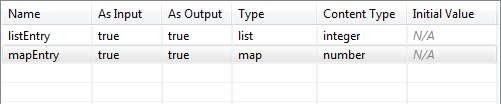
For example, if you create a dictionary entry of the type
listand set the Content Type tointeger, you can access the entry in CTL2 asinteger[]- a list of integers.Similarly, if you create a dictionary entry of the type
mapand set the Content Type tonumber, you can access the entry in CTL2 asmap[string, number]- a mapping fromstringkeys tonumbervalues (the keys are always assumed to be of thestringdata type).There are three other data types of dictionary entries (available in Java):
object- CloverDX data type available with CloverDX Engine.readable.channel- the input will be read directly from the entry by the Reader according to its configuration. Therefore, the entry must contain data in valid format.writable.channel- the output will be written directly to this entry in the format given by the output Writer (e.g. text file, XLS file, etc.)
Content TypeThis specifies the content type of the output entry. This content type will be used, for example, when the graph is launched via Launch Service to send the results back to user.
Initial ValueA default value of an entry - useful when executing the graph without actually populating the dictionary with external data. Note that you cannot edit this field for all data types (e.g.
object). As you set a new Initial Value, a corresponding name-value pair is created in the Properties pane on the right. Initial value is therefore the same as the first value you have created in that pane.
Each entry can have some properties (name and value). To specify them, click the corresponding button on the right and specify the following two properties:
NameSpecifies the name of the value of corresponding entry.
ValueSpecifies the value of the name corresponding to an entry.