
Version
Data Manager introduction
Overview
Data Manager provides functionality that allows domain experts to work directly with data that is processed by or used by CloverDX. Data Manager allows users to view, edit and approve changes to data that flows through the system.
Data Manager supports two basic use cases - data quality management and reference data management. In both cases, the Data Manager offers a comfortable user interface that allows users to see their data, make changes and review/approve them to ensure that only valid data is retained and processed further. Data Manager implements permissions system which allows different users to have different roles (e.g., read-only users, approvers and more) to ensure that everyone has just the access they need to do their job.
Data quality in Data Manager
The first use case we’ll cover in this manual is the data quality use case. The Data Manager is used to monitor and improve the quality of the data that flows through it. It can be used, for example, to store rows that fail data validation and require manual user intervention to correct the data issues. Data Manager offers an interface where users can easily see the data and associated validation messages and fix data issues by manually editing the data. The rows can then be sent for approval and once approved they will be picked up by a CloverDX graph which will send them to the downstream system.
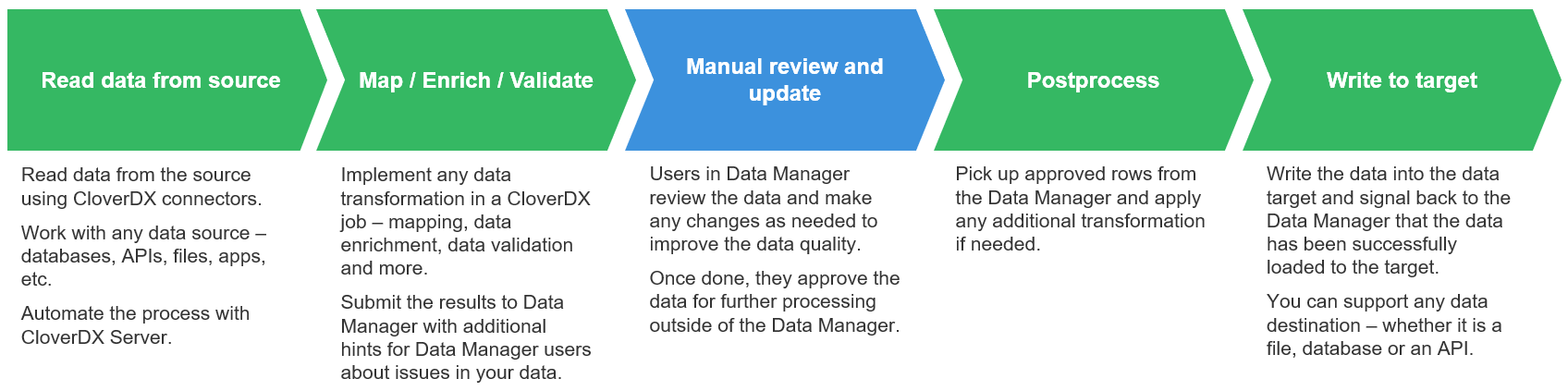
Figure 129. High-level overview of the data flow through the Data Manager.
The above diagram shows basic data flow in a data quality use case when implemented with CloverDX Data Manager. Data starts its journey in a CloverDX job (e.g., in a graph) which reads the data from the source and applies any transformations as needed. This process is typically automated, and data is picked up from the source based on a schedule, or the load can be triggered by an event such as file arrival or an API call.
During this initial processing, data is validated. Any validation issues are collected and sent along with the data to the Data Manager.
Data Manager shows the data to users who can review and modify the data to ensure that any issues are fixed. Once the data is clean, it can be approved in the Data Manager for further processing.
All approved rows are picked up from the Data Manager’s storage by another CloverDX job. As before, this step can be automated and performed based on a schedule or variety of triggers.
And finally, the records are uploaded to their destination. This can be any target system – whether it is a file, API, cloud app or a database. At the same time, the Data Manager is notified that each row has been processed and will show this information to its users. Users can then see that the data was successfully loaded into the target system.
A typical example of the data quality use case that benefits from the Data Manager is data ingestion. During data ingestion data issues are frequently detected early in the process and in many cases cannot be fixed automatically - a person (domain expert) needs to review, fix, and then approve the data.
To learn more about data quality uses cases and how Data Manager can help, see more information about transactional data sets and their usage.
Reference data management in Data Manager
The second use case focuses on master data management and reference data management. In these cases, users need to manage shared data that is used across the organization. Typically, this means various shared reference (lookup) tables, product lists, configuration tables and more.
Compared to the data quality use case, these reference tables are often relatively static. Once the data set is created and populated, the data tends to stay there for a long time even though it is modified. As an example, you can have reference tables for product catalog, product categories, country codes, regional codes and more.
Maintaining reference tables in the Data Manager allows domain experts to work on the same data in a simple user interface that allows them to make and track all changes via audit log.
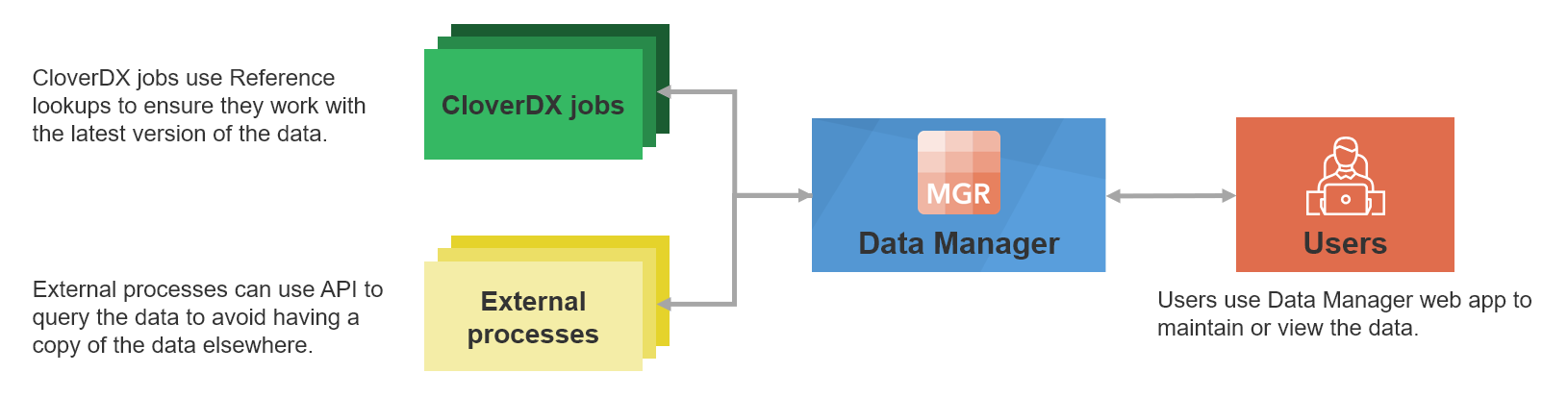
Figure 130. A high-level diagram showing how Data Manager is used for reference data management.
Data Manager provides an easy-to-use interface to use such shared reference tables in the Designer when building your jobs. This allows domain experts (who own and manage the lookup) to effectively share data that they own with the data engineers who need to use the data.
As an example of a use case where Data Manager can help you with the reference data management, we can even use the same example as above - data ingestion. During data ingestion you’ll have to validate your incoming data and, in many cases, will need various reference tables to ensure that incoming data does not contain any unexpected values (e.g., you can validate product codes against product catalog, validating product categories, and more.)
To learn more about how Data Manager can help you, read more about reference data sets.
Basic concepts
Data set
Data Manager stores its data in data sets. Data set is a collection of rows (records) all of which have the same data layout. Any number of data sets can be defined in a single instance of a Data Manager.
Data Manager supports two types of data sets – transactional data sets and reference data sets.
Transactional data sets are designed to store and work with transactional data. Transactions are rows that are loaded to the Data Manager, updated as needed and then unloaded to be sent to the target system. As such, each transaction is kept in the Data Manager only for limited amount of time (this depends on the use case – can be days or even months or years).
This style of working with data benefits the data quality use cases – each row is reviewed, edited and once it is approved it is processed further in a CloverDX job and does not need to be stored in the Data Manager anymore.
On the other hand, reference data sets are designed to store data that is more static and permanent – your reference data (the lookups). Rows in reference data sets do not get processed directly but rather are involved in various processes in the form of lookups or various configuration tables.
Data set rows
Each data set contains any number of rows with each row having the same data layout (columns). Rows can be in different statuses depending on what work was done with each row.
The structure of each row is described by its data layout. The data layout defines columns (fields) and their data types as well as additional column properties (for example, whether the column is editable, etc.).
The columns can be strings (representing text), numbers (integers as well as decimal numbers), dates, or boolean (representing true/false). For more information about data layout and column data types, please see the Data layout section.
Data set permissions
Data set permissions are configured for each data set separately. Each data set has an owner who is also an administrator of that data set. The ownership of the data set cannot be changed.
Permissions are configured in terms of user roles. Roles define what users who have these roles can do with the data in the data set. Four permission levels (roles) are available – Admin (the most powerful role), Data Approvers, Data Editor, and Read-only user (the least powerful role). Note that Read-only users are only available in reference data sets. In transactional data set, the Data Editor is the least powerful role.
The operations permitted on a data set for each role are shown in the following diagram:
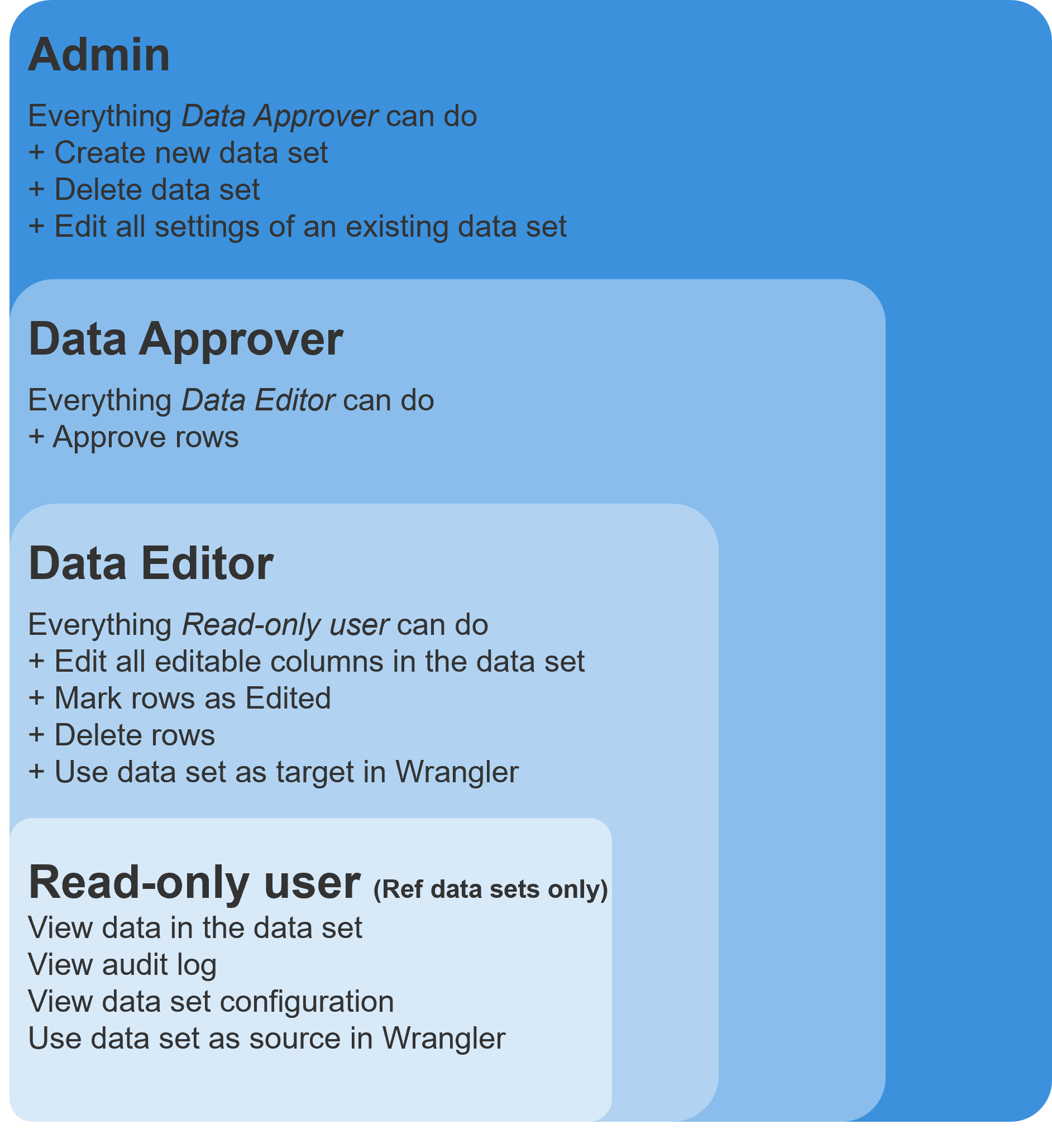
Figure 131. Hierarchy of the data set permissions in the Data Manager.
You can assign any number of users into each role. Note that CloverDX Server implements additional permissions that guide access to Data Manager. See User management and access control in the Server Administration documentation.
Connected Data Apps
To help users interact with data sets, you can connect Data Apps to a dataset. This will make Apps available directly in the data set editor in the toolbar. Data Apps can be connected to the data set via Data Set Configuration pages. Only data set administrators can change Apps that are connected to a data set. Other users can see the Apps but cannot add or remove them.
A dataset can have any number of connected Data Apps. The Data Apps page allows you to see which Data Apps are currently assigned to the dataset, add new ones, remove existing ones, and change their order.
The order of connected Data Apps is preserved and affects how the actions are presented later in the editor (apps are ordered from top to bottom and the first one appears as the first app on the toolbar).
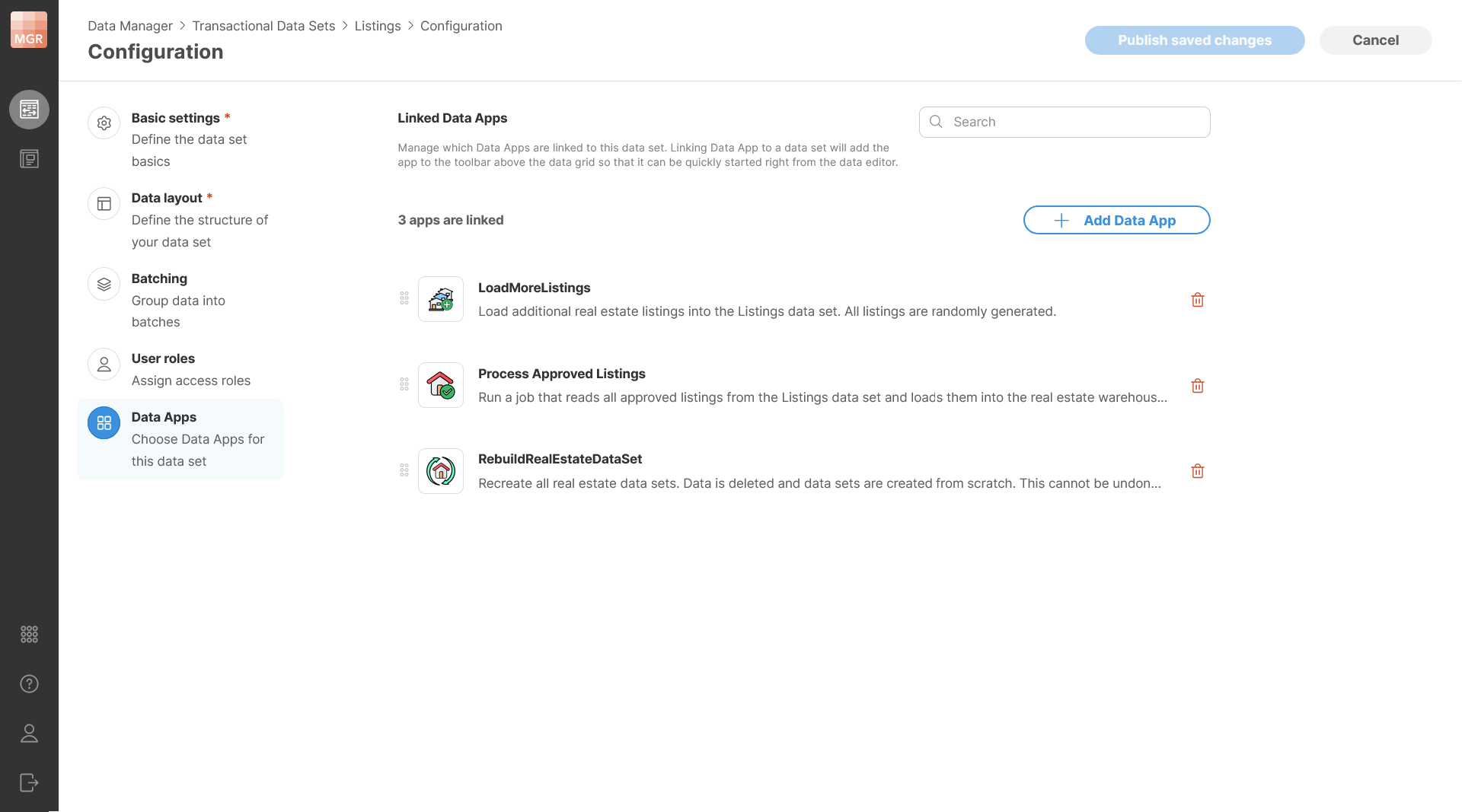
Figure 132. Data set configuration showing connected Data Apps.
Data Apps shown in the data set editor respect user’s permissions. It is therefore possible for a user with limited permissions to not see some of the apps on the toolbar since they do not have permissions to use those apps. This can allow you to add apps for everyone and then fine-tune which apps are available to different users with permissions settings in CloverDX Server Console.
Adding or Removing Data Apps
To add a new Data App, click Add Data Apps. This opens a dialog which will show you an App Catalog where you can browse available Data Apps and select one or more items. Only Data Apps that you have permissions to use will be shown here.
The selection dialog supports search, so you can quickly find the app you are looking for. After confirmation, the selected Data Apps are added to the dataset.
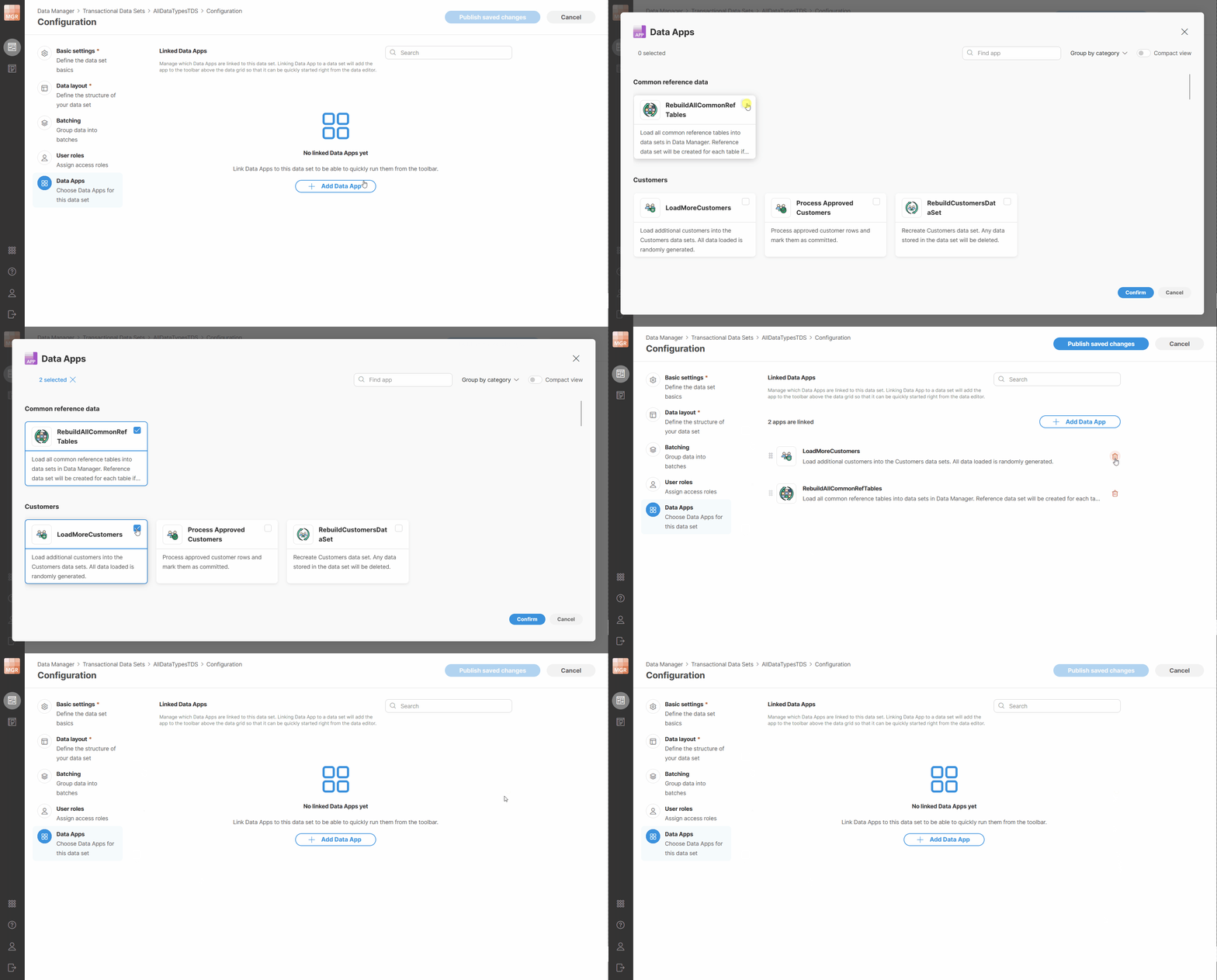
Figure 133. Adding Data Apps to a dataset.
Apps can be removed by clicking on the trash can icon next to each app in the data set configuration.
Running connected Data Apps
Connected Data Apps can be run directly from the Data Set Editor on the current dataset. The editor shows the Data Apps that are assigned to the dataset as available actions above the grid toolbar.
If only a few Data Apps are connected, they are displayed as quick action buttons. If more Data Apps are available, they are shown in a dropdown with search.

Figure 134. Data set editor showing connected Data Apps on the toolbar.
To run a connected Data App, select it from the toolbar. The Data App will open in a dialog showing app description and parameters (if any) - this is the same as when the app is started directly from the Data App Catalog.
A notification will be shown while a Data App is running. You will not be able to run other Data Apps while the first one is running. This is to allow you to see app results once it is done. However, the execution is non-blocking, so you can continue working with the dataset in the editor. Note that if multiple users are working on the same data set, they will be able to start multiple Apps in parallel. Each user will then only be able to see output of the app they started.
If you try to leave the editor while a Data App is still running, Wrangler shows a confirmation dialog explaining that leaving the editor prevents you from seeing the results in the current preview flow. However, the Data App will continue running and will not be terminated. This allows you to do something else while the app is running if it takes long time to run.
When the Data App finishes, Data Manager shows a notification with the result of the execution.
The notification will indicate whether the run finished successfully or with an error. Depending on the result, the notification can also provide additional actions such as downloading a file or opening the result preview.
If you choose Open Preview, Data Manager opens a dialog showing the result page. The result can be displayed as either a success page or an error page, using the same presentation as in Data Apps.
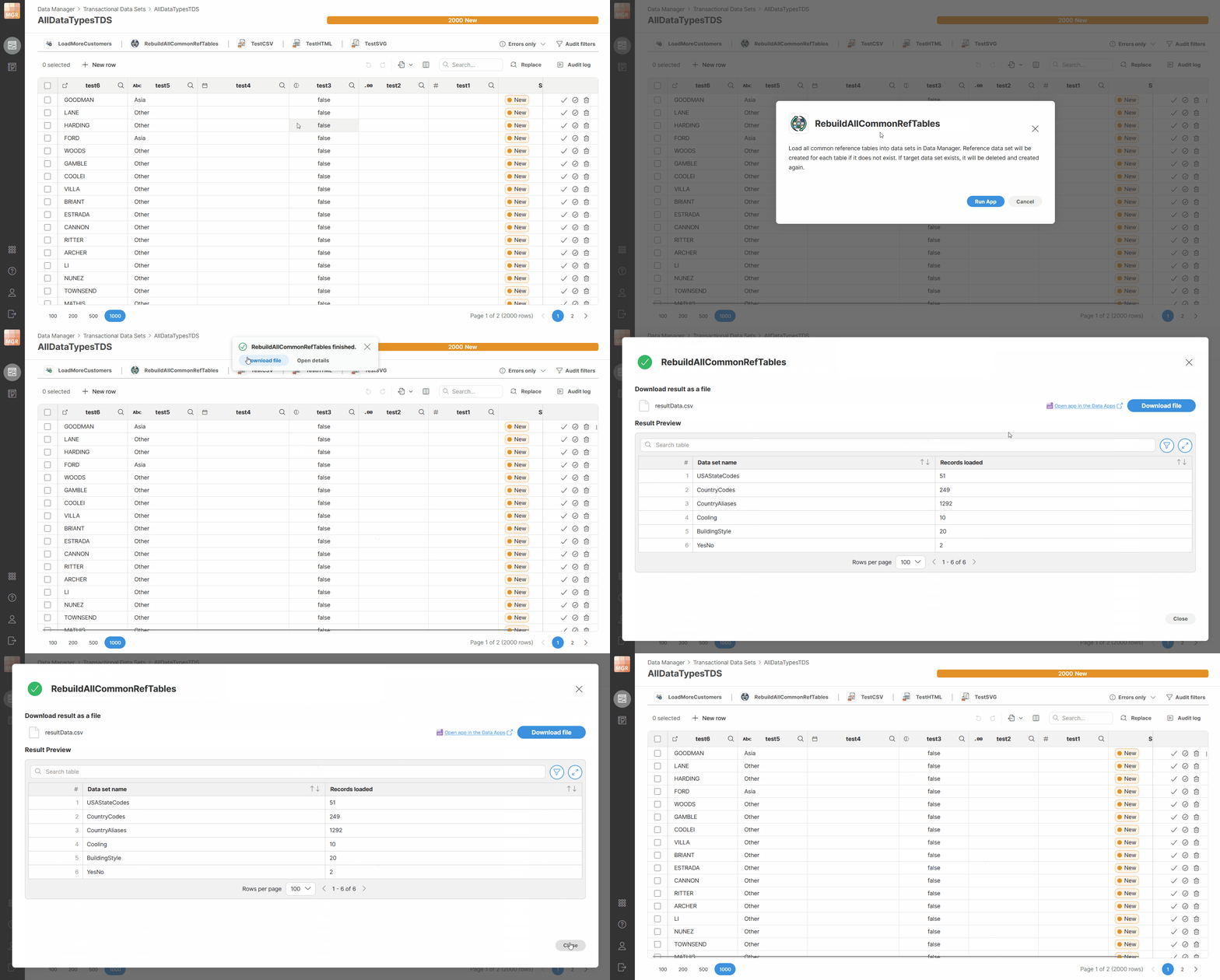
Figure 135. Running Data Apps directly from the data set editor.